Designing a Command Palette between ambitious visions and real constraints
BePeople is a SaaS platform that allows complex data to be analyzed using semantic queries, transforming natural language into SQL thanks to OpenAI technology. In a context where speed is everything, the CEO wanted a “talking” interface where users could give instructions directly from a search bar. However, we were faced with reality: zero budget for user research, very tight deadlines to cover development delays, and the technical impossibility of adding additional layers of artificial intelligence or NLP. The challenge was therefore to create a Command Palette that simulated that intelligence through a logical and functional design, based exclusively on academic data and industry benchmarks.
The Need – Speed, vision, and realism
The context: What is BePeople?
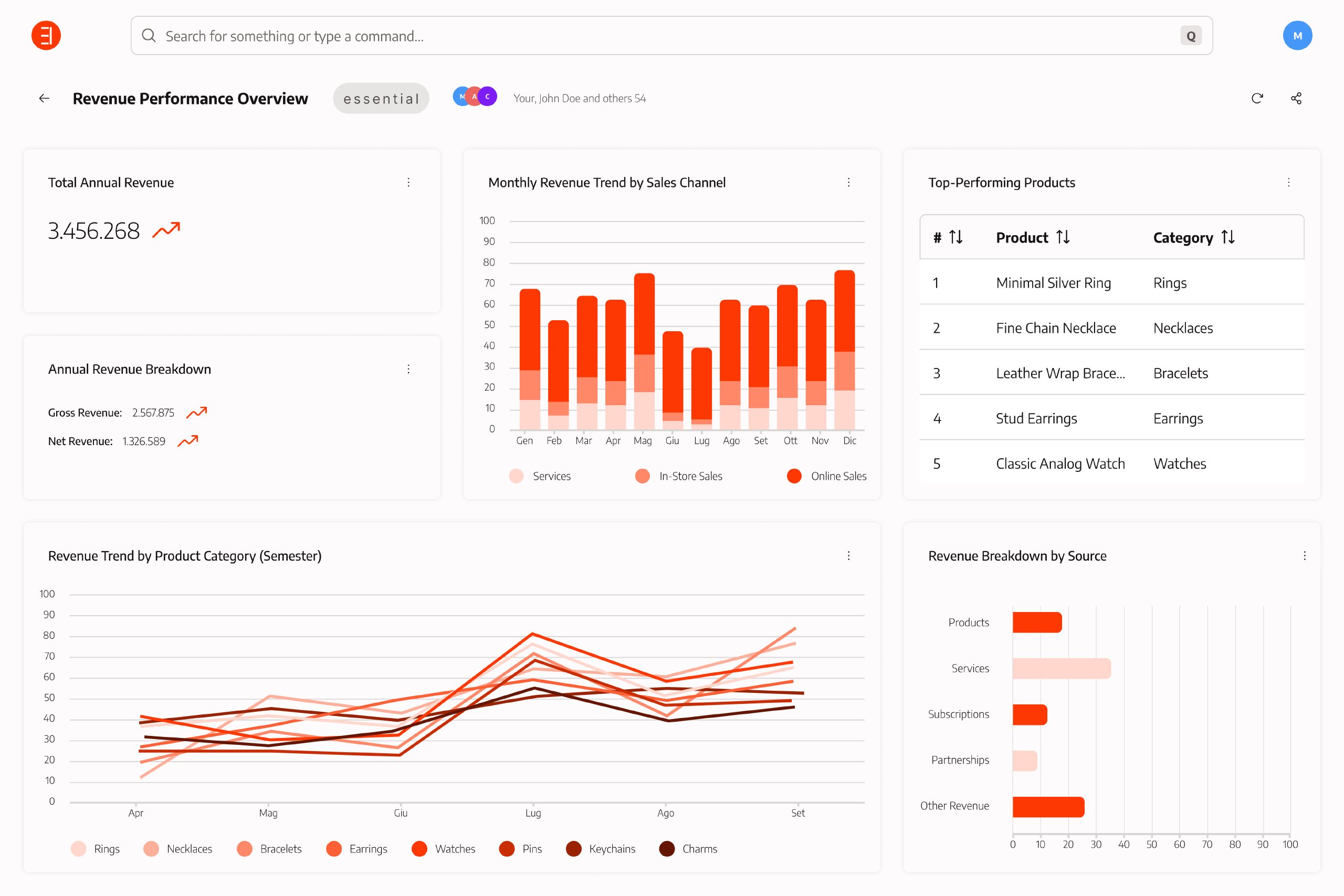
BePeople is not just a simple data analysis tool; it is an advanced SaaS system that allows users to query complex databases using natural language. Leveraging OpenAI technology, the platform translates user questions into SQL queries based on the database schema, without the AI directly accessing sensitive data. The results are then displayed in widgets (graphic cards) within shareable workspaces.
The CEO’s vision: A “remote control” for data
The ambition behind the Command Palette (internally referred to as Power Bar or CoPilot) was to make the analytics experience similar to a conversation with ChatGPT. The CEO envisioned a single entry point where the user could not only search for data, but literally “command” the interface: create a desk, share a report, or duplicate a widget without ever touching the mouse. The idea was that the bar would automatically generate or modify the interface based on the inputs provided.
The clash with reality: Constraints
Despite the “AI-first” vision, the team faced concrete challenges that redefined the scope of the project:
- Technical and Budgetary Constraints: To contain costs and complexity, it was decided not to introduce an additional layer of artificial intelligence or NLP specific to navigation. The bar had to be “intelligent” in logic, but not in computational cost.
- Suffocating Time-to-Market: Design was used as a “buffer” for delays by the development team. With very tight deadlines, it was not possible to conduct user testing or field research (zero budget).
- Fragmented navigation: BePeople is a rapidly evolving product. Traditional navigation was becoming cumbersome, and a way was needed to “skip” the linear information architecture, shortening the user’s path.
[INSERT IMAGE 2: Flowchart or logical diagram of the Power Bar] Use the Mermaid diagram or image in the “Pasted Text” document showing the User -> Share/Refresh/Search flow. This visually illustrates how we translated an AI vision into a logical decision tree.
The strategy: Evidence-based design
In the absence of direct user research, we turned to industry benchmarks and academic research. We drew inspiration from established patterns such as Repl.it’s CLUI, macOS Spotlight, and VSCode’s command palette. These systems demonstrate how a search bar can become the ultimate productivity tool, balancing the power of the command line with the intuitiveness of a graphical interface.
[INSERT IMAGE 3: Benchmarks and Inspiration] Use one of the Repl.it CLUI GIFs or the Framer image to show the reference models that guided the design in the absence of user testing.
Strategy – Designing with academic research
In the absence of a budget for UX research, the design was not based on mere conjecture, but on a solid analysis of industry benchmarks and established theories of human-computer interaction [User Query]. The goal was to create a system that was not just a search bar, but a hybrid between a graphical user interface (GUI) and a command line interface (CLI).
1. The rebirth of the command line (CLI)
We embraced Don Norman’s vision that command line interfaces, once considered obsolete, have made a strong comeback in the form of search bars because traditional GUIs can no longer scale with the complexity of modern systems. Professional products such as Adobe Premiere are often so feature-rich that they become inaccessible; in these cases, search becomes the only way to avoid getting lost in endless nested menus. At BePeople, we wanted to avoid this “cognitive overload” by centralizing every action in a single place: the Power Bar.
2. Peer analysis: From Spotlight to Repl.it
Our research focused on successful models that have already solved the problem of complex navigation:
- Spotlight (macOS) and VSCode: Universal mental models that users already know and know how to activate (Cmd+K).
- Repl.it’s CLUI: A key reference point that blends the conciseness of the CLI with the approachability of the GUI. From this, we learned that every command can be viewed as a path (similar to a URL) and that the interface can be dynamically generated from data.
- Microsoft Codex-CLI: An example of how to transform natural language into executable commands while maintaining granular control via shortcuts.
[INSERT IMAGE 4: Examples of Command Palette (Spotlight/VSCode)] A collage showing these famous interfaces to give the reader an understanding of the visual and functional references that guided the project.
3. Balancing “recognition” and “recall”
One of the theoretical pillars of the project was overcoming the main limitation of old CLIs: the need to memorize commands (“Recall”). Thanks to the implementation of Fuzzy Search and autocomplete, we transformed interaction into an exercise in recognition. Users do not have to remember the exact term: the system “meets them halfway” by suggesting relevant commands even in the presence of spelling errors or synonymous terms.
4. The strategic objective: Discoverability and Productivity
Without being able to interview users, we designed for two archetypes:
- The new user: The Power Bar is used to discover features (Discoverability) that would otherwise remain hidden in secondary menus
- The Power User: The bar becomes an extremely efficient tool, allowing complex tasks to be performed with very few keystrokes, bypassing the linear architecture of the site.
[INSERT IMAGE 5: Study of element states (from Command group items.pdf)] Include details of “Item states” (Idle, Hover, Clicked) or “Group Variants.” This image serves to demonstrate that, despite the speed of the project, meticulous care was taken in defining how the user perceives the system’s feedback.
The soul of the bar – logic and architecture
The heart of the design challenge was to answer a fundamental question: how can we allow the user to “command” the interface without a natural language processing (NLP) system? The answer was to transform the Power Bar into a branching logic engine, capable of guiding the user through a predefined but extremely fast path.
1. Logic: The Decision Tree
At a high level, we designed CoPilot not as a simple list of results, but as a flowchart or decision tree. The user begins their interaction at the “root” (the empty bar) and, as they type, gradually descends along the branches of commands. This approach, technically similar to a depth-first search, allows you to arrive at a complete and complex command through a series of quick selections. Unlike a traditional drop-down menu, the search is integrated into each step: the user does not have to limit themselves to clicking, but can “jump” directly to nested subcommands if they know the name, just like in macOS Spotlight.
[INSERT IMAGE 6: Logical flowchart] Use the Mermaid diagram in the sources showing the User -> Share/Refresh/Search path. It is the perfect image to visually explain the tree structure of the bar.
2. The technical engine: GraphQL and Introspection
To make the system scalable and avoid having to manually map every single button in the app, we leveraged the power of our GraphQL backend. Using introspection queries, the system is able to automatically generate the command tree by mapping them to their respective functions. In simple terms: every time developers add a feature to the backend, it can potentially become a command in the bar with minimal effort, making the system extremely flexible and “future-proof.”
3. Commands as URLs: Non-linear navigation
We treated each CoPilot command as if it were a file path or URL. A complete command (e.g., Desktop > Share > User) is seen by the system as a hierarchical string. This approach has a huge advantage in terms of UX: it shortens the user’s path, allowing them to “skip” the linear architecture of information. It is no longer necessary to physically navigate to a page to perform an action; the Power Bar acts as an instant portal.
4. Atomic Components: Command Group Items
To give shape to this logic, we defined an extremely detailed library of atomic components. These are not just lines of text, but specific Item Variants for each type of interaction:
- Command Items: For direct actions.
- Select/Multi-select Group: To choose one or more recipients (for example, when sharing).
- Submit Items: For confirming the final operation.
- Prompter Group: For suggesting previous searches or common parameters.
Each element has been designed with clear states (Idle, Hover, Clicked) to ensure that the user receives immediate feedback while “descending” the command tree.
[INSERT IMAGE 7: Anatomy of components] Use excerpts from the “Command group items” PDF to show the variety of items (Default, Pushed, Selected) and groups (Multi-select, Single element). This shows the attention to detail in the design system.
Making complexity invisible – UX and logical “intelligence”
The true success of a Command Palette depends not only on what it can do, but how well it can interpret the user’s intentions. Since technical constraints prevented us from implementing a natural language processing (NLP) system, we had to simulate this intelligence through rigorous UX logic and a flexible search system.
1. Fuzzy Search: Be Forgiving
Nothing interrupts workflow like a typo that blocks a search. We implemented fuzzy search algorithms to make the bar “forgiving but accurate.” The system is designed to return correct results even if the user:
- Makes spelling mistakes;
- Ignores case differences;
- Uses only part of the word.
The goal was to ensure that the user never feels frustrated by an unsuccessful search, encouraging them to use the bar as their primary navigation tool.
[INSERT IMAGE 8: Example of a search with an error (from Search.png)] Use a screenshot of Search.png showing the user typing part of a command and the bar suggesting the correct options. This demonstrates the system’s tolerance.
2. Aliases and Synonyms: Mapping Mental Models
Every user has a different way of referring to the same action. A novice might search for “change,” while an expert would search for “edit.” To solve this problem, we mapped each command with a series of aliases and alternative terms. When a user types in a synonym, the Power Bar displays the official command alongside the alias searched for, using a syntax such as Title (Alias). This not only helps the user find what they are looking for, but also gradually educates them on the standard terminology of the product.
3. Scoring and Relevance: The Order of Things
Not all commands are equally important. To ensure that users immediately find the most likely option, we introduced a scoring system:
- Priority scale: Each command has a multiplier that increases or decreases its score based on popularity or importance.
- Logical sorting: If a user types “widget,” the system prioritizes creating or editing a widget over less common commands, regardless of character matching.
4. Context Awareness
The Power Bar is designed to be context-aware. Although most commands are available everywhere, some specific actions (such as Share or Reload) only make sense within a Desk. In these cases, the system reacts in two ways:
- It hides commands that are completely irrelevant to reduce visual noise.
- It increases the score of commands relevant to the current context, bringing them to the top of the results.
[INSERT IMAGE 9: Contextual commands (from Share - Internal.png)] Use a sequence of Share - Internal.png or Edit - Internal.png to show how the bar displays specific options for sharing or editing only when the user is in the right operating context.
5. Feedback and Confirmation
In a system without NLP, it is essential that the user always knows whether a command has been executed. We have implemented immediate visual feedback, such as toast notifications or status animations, to confirm execution or report errors, ensuring that the interaction never feels like a “black box.”
Aesthetics and feedback – The interface in action
If logic and architecture represent the “brain” of the Power Bar, design and feedback system constitute its “character.” In a system that aims for maximum productivity, the interface must be not only clean but also extremely communicative: the user must know at all times what they have selected and what will happen after the next click.
1. Command Anatomy: Icons and Aliases
To make the palette visually stimulating and facilitate quick recognition, each command has been accompanied by a distinctive icon. This not only differentiates actions, but also helps the user make quick mental connections without having to read every line of text. A key element of the results design is the management of synonyms. When the user types an alias, the system displays both the official name of the command and the searched term in parentheses, with a syntax such as: Command title (Alias). This choice educates the user on the standard terminology of the product, while reassuring them as to why that result appeared.
[INSERT IMAGE 10: Results Design and Aliases] Use a detail of the search results (e.g., from Search.png) where you can see an icon next to the text and, if possible, the syntax with the alias in parentheses.
2. States and Variants: An Atomic Design System
Despite the pressure to meet deadlines, we designed a meticulous component library to ensure consistency in every interaction. Each bar item responds to specific states:
- Idle: Neutral state when the item is active and ready.
- Hover: Visual feedback when the mouse hovers over the item to indicate interactivity.
- Clicked/Pushed: Immediate confirmation of the selection made.
We also created variants to handle different operational needs, such as the Select-all Item for bulk actions on user groups or the Submit Item with a check icon for final confirmation of the operation.
[INSERT IMAGE 11: Item States and Variants] Use extracts from the PDF “Command group items” showing the status grid (Idle, Hover, Clicked) and variants (Pushed, Submit, Multi-select). This demonstrates the depth of the UI work.
3. Feedback on Execution: Closing the Loop
The user should never be left wondering whether a command has been successful. We have integrated a clear and immediate feedback system:
- Visual Indicators: Highlighting or background animations during the transition between branches of the command tree.
- Notifications (Toast): Once the action is complete (e.g., “Desk successfully shared”), a pop-up notification appears confirming the operation or reporting any errors.
[INSERT IMAGE 12: Example of Success Notification] Use the last slide of Share - Internal.png or Delete - Internal.png showing the small confirmation popup in the upper right corner after the command is executed.
4. Advanced Shortcuts: Prefixes and Special Syntax
For “Power Users” who want to skip the more verbose steps (such as navigating through dozens of widgets), we have provided the use of special prefixes:
- “@”: To instantly navigate to a specific widget or desk (e.g., @Marketing).
- “?”: To activate pure “Data Search” mode, separating it from the interface’s operational commands. In addition, as you type, the text corresponding to the query is highlighted within the results to draw the user’s attention to the relevant part of the option.
Conclusions – What we learned “under siege”
The launch of the Power Bar marked a turning point for the BePeople user experience. What started out as an almost impossible challenge — creating a “smart” interface without a research budget and without an additional layer of AI — turned into one of the most appreciated features of the platform.
1. The Results: Productivity and Scalability
The introduction of the Command Palette brought tangible benefits to both users and the development team:
- Operational efficiency: By providing a single point of quick access (Cmd+K), we enabled users to complete complex tasks with dramatically fewer clicks and keystrokes.
- Non-linear navigation: The bar allowed users to “skip” the classic site architecture, giving instant access to deeply nested information and functions that previously required several steps.
- Technical scalability: Thanks to the GraphQL-based approach, adding new features to the product now means automatically adding new commands to the bar, making the software’s growth extremely orderly and modular.
2. Discoverability: Features finally visible
One of BePeople’s main problems was the difficulty for new users to discover the system’s full potential. The Power Bar acted as an interactive catalog: by providing a searchable list, it helped users discover features they didn’t know existed, improving the adoption rate of the platform’s secondary features.
3. Lessons learned (Takeaways)
Designing under emergency conditions (tight deadlines and zero budget) taught us that:
- Established patterns are lifesavers: In the absence of user testing, relying on existing mental models (such as macOS Spotlight or Replit CLUI) drastically reduces the risk of error.
- Design is a strategic buffer: We have demonstrated that a logical and well-structured design can compensate for the lack of expensive technologies (such as dedicated NLP) by simulating system intelligence through good information architecture.
- Less is more (in the GUI): Centralizing commands has allowed us to keep the interface clean and focused on data, preventing BePeople from becoming “cluttered” and difficult to navigate like classic BI systems.
The Future: Towards Total Integration
Although the project was born out of constraints, the path forward has been laid out. The future vision is to make every single BePeople action accessible via the Power Bar, gradually eliminating redundant drop-down menus and transforming data interaction into an increasingly natural, rapid, and “invisible” flow.
[INSERT IMAGE 13: Final screenshot of the bar with successful feedback] Use the last slide of Share - Internal.png or Edit - Internal.png. Showing the closed bar and the message “Operation completed” is the perfect way to visually close the case study, showing the success of the task.